Screens are created in the Edit mode. To create a new screen, click New on the File menu. The new screen will be shown in the Edit mode.
The Edit mode has three views: the Layout View, the Script Editor View, and the Mini Script Editor View.
The default Edit mode view is the Layout view. One of the methods to toggle between the views is by selecting Show Script Editor or Hide Script Editor on the View menu.
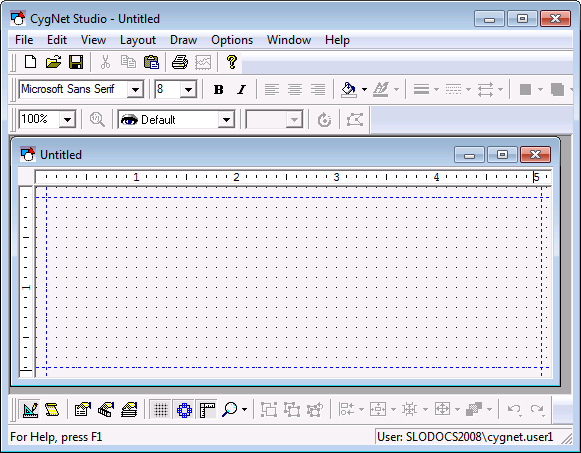
The image below shows the layout view. You must be in the layout view of the Edit mode to add objects to TheView, edit properties, adjust grid settings, etc.
|
|
| Edit Mode, Layout View |
The Script Editor view can be shown by double-clicking anywhere in TheView, by clicking View Script Editor on the View menu, or clicking the Script Editor toggle button on the Layout toolbar  . You can toggle back to the Layout view by clicking Hide Script Editor on the View menu or you can toggle between the views using the script editor icon in the Layout toolbar .
The image below shows the Script Editor view. The Script Editor can be used to add script to any object or TheFrame/TheView. Use of the Script Editor is described in Scripting in CygNet Studio.
Note: An important thing to remember regarding the Script Editor is that when you close the script editor view (rather than toggling back to the Layout view) you are closing out of the Edit mode.

|
| Edit Mode, Script Editor |
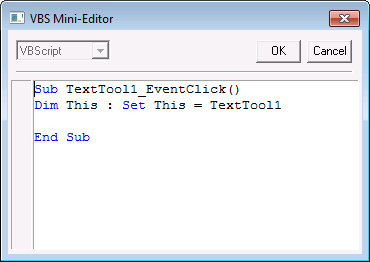
The Property Sheet for TheView contains an Events page, which is accessed by right-clicking TheView. This page lists the events available for the object. When you click an event, a VBS Mini-Editor is displayed.
The VBS Mini-Editor provides an interface for you to write script for a specific event for a specific tool. This is in comparison to the Script Editor view, where you type script for any event for any object.
Note: When you close the VBS Mini-Editor you are closing the dialog box; however, you are not closing out of the Edit mode.
|
| VBS Mini-Editor |

|
|
|

